Home
Features Overhead Scanner Individual Flight Tracker Departure Board
Products Mach 2 Flight Tracker MatrixPortal Dev Kit
Setup Guide About FAQ Contact
Introducing the Mach 2

Every Flight.
Overhead.

Every plane overhead. Every flight number. Live ADS-B data on a 2,048-pixel LED matrix, wrapped in solid maple. No app. No device subscription.
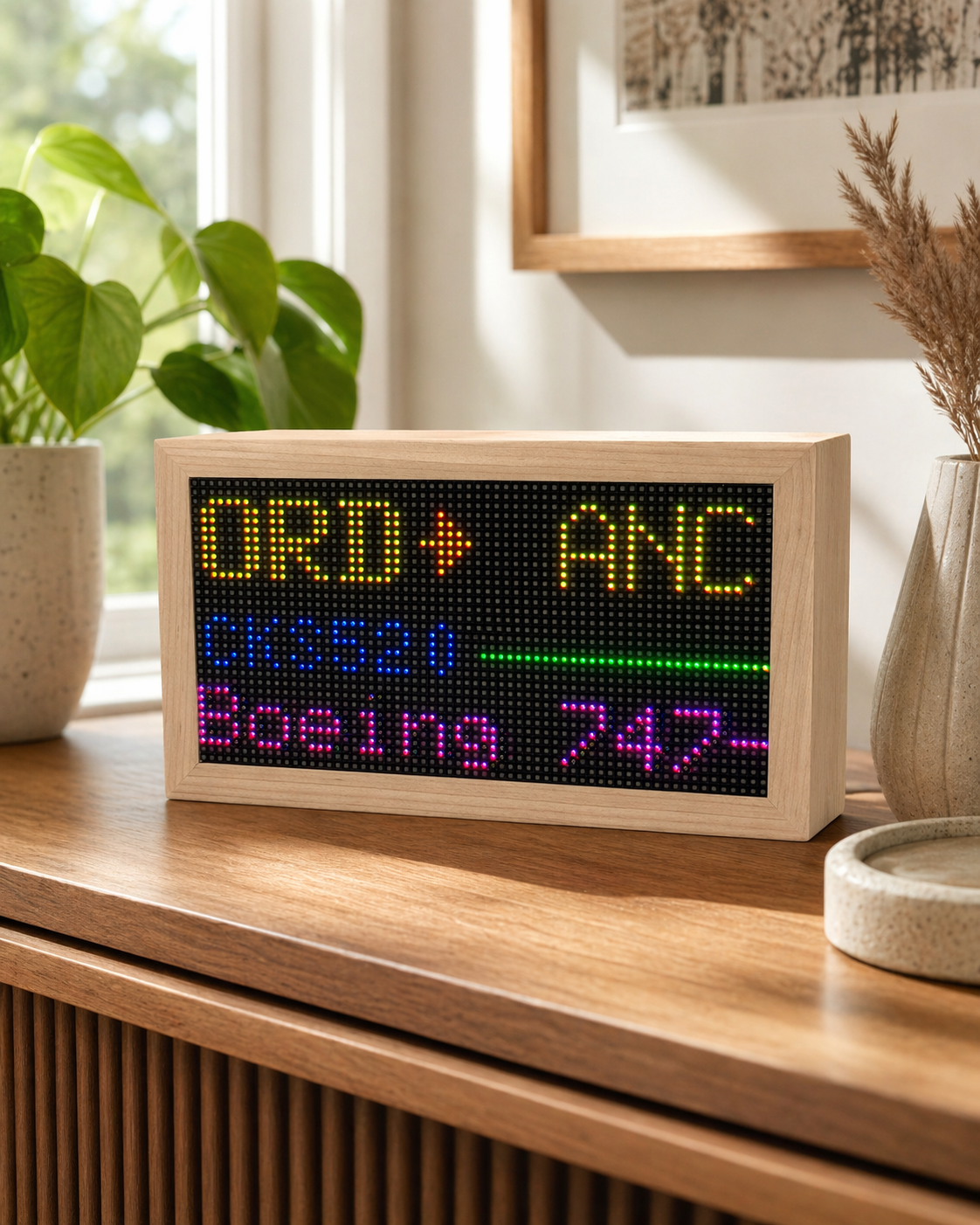
FlightTrackerLED Mach 2 maple LED flight tracker display showing ORD to ANC
Display
2,048-pixel LED Matrix
Full color, always crisp
Processor
ESP32-S3
Fast boot, low power
Data
Live ADS-B
Real-time, no delays
Frame
Solid Maple
Hand-assembled
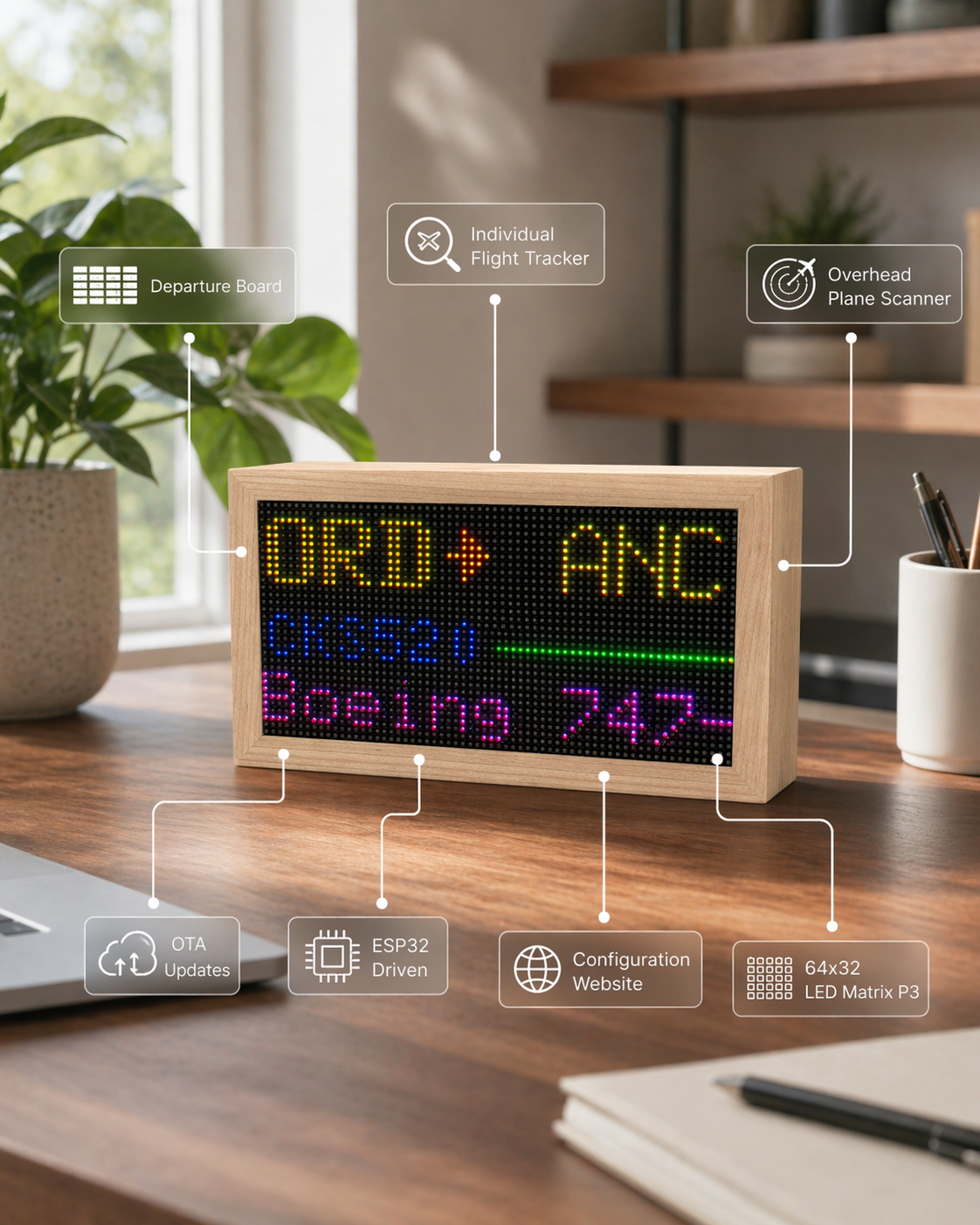
Mach 2 feature callouts for departure board, OTA updates, ESP32, setup website, and LED matrix
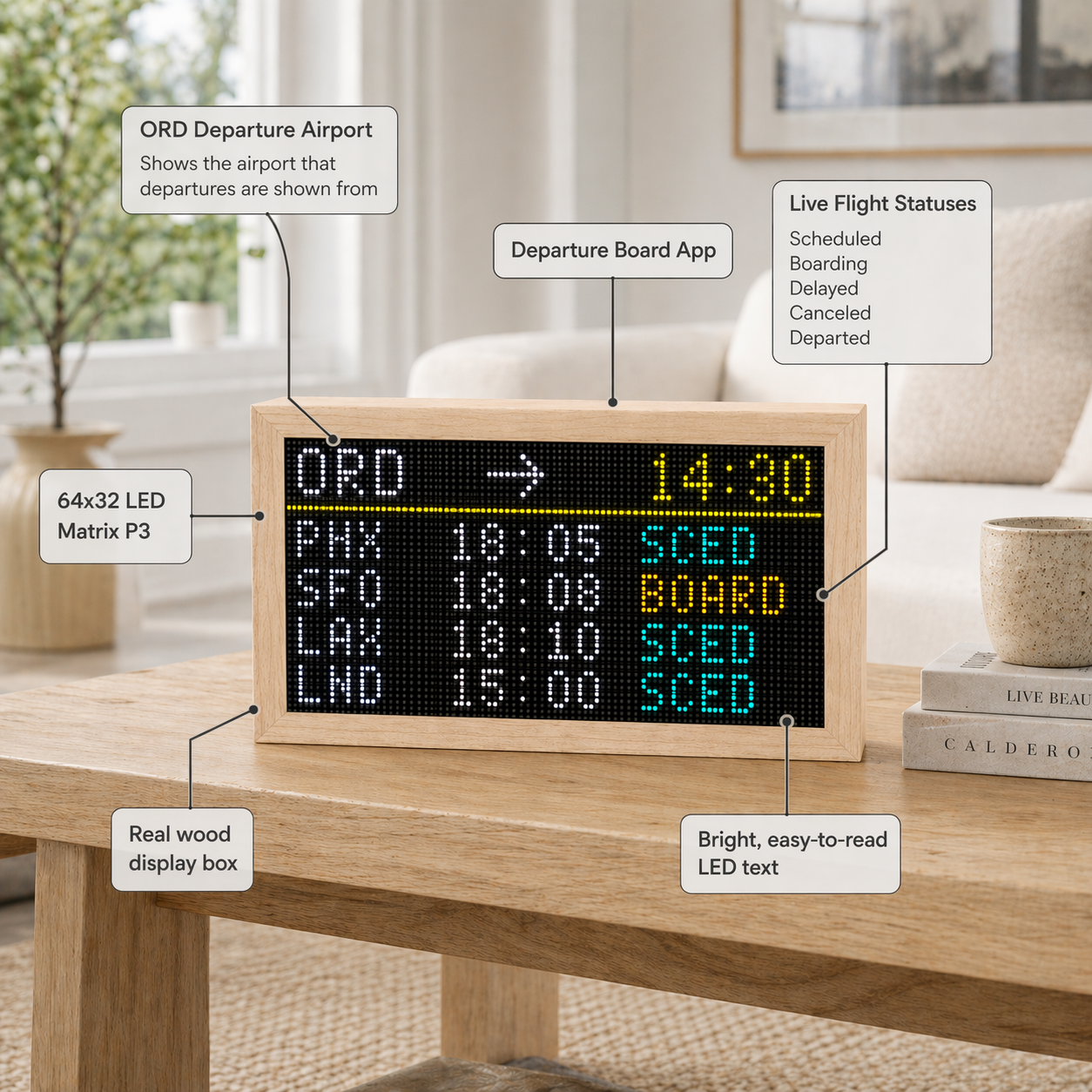
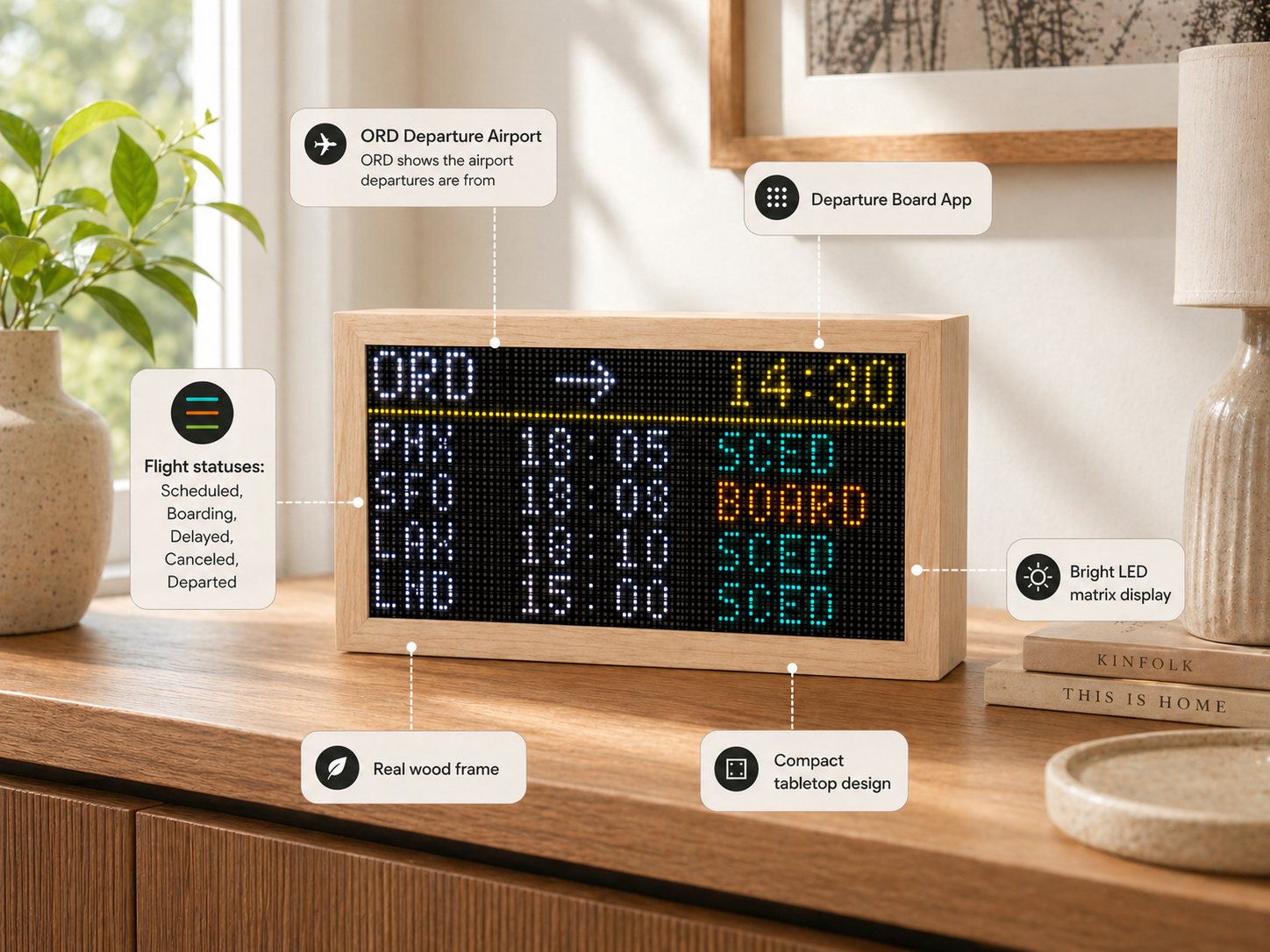
Mach 2 departure board app callouts showing ORD departures and live flight statuses
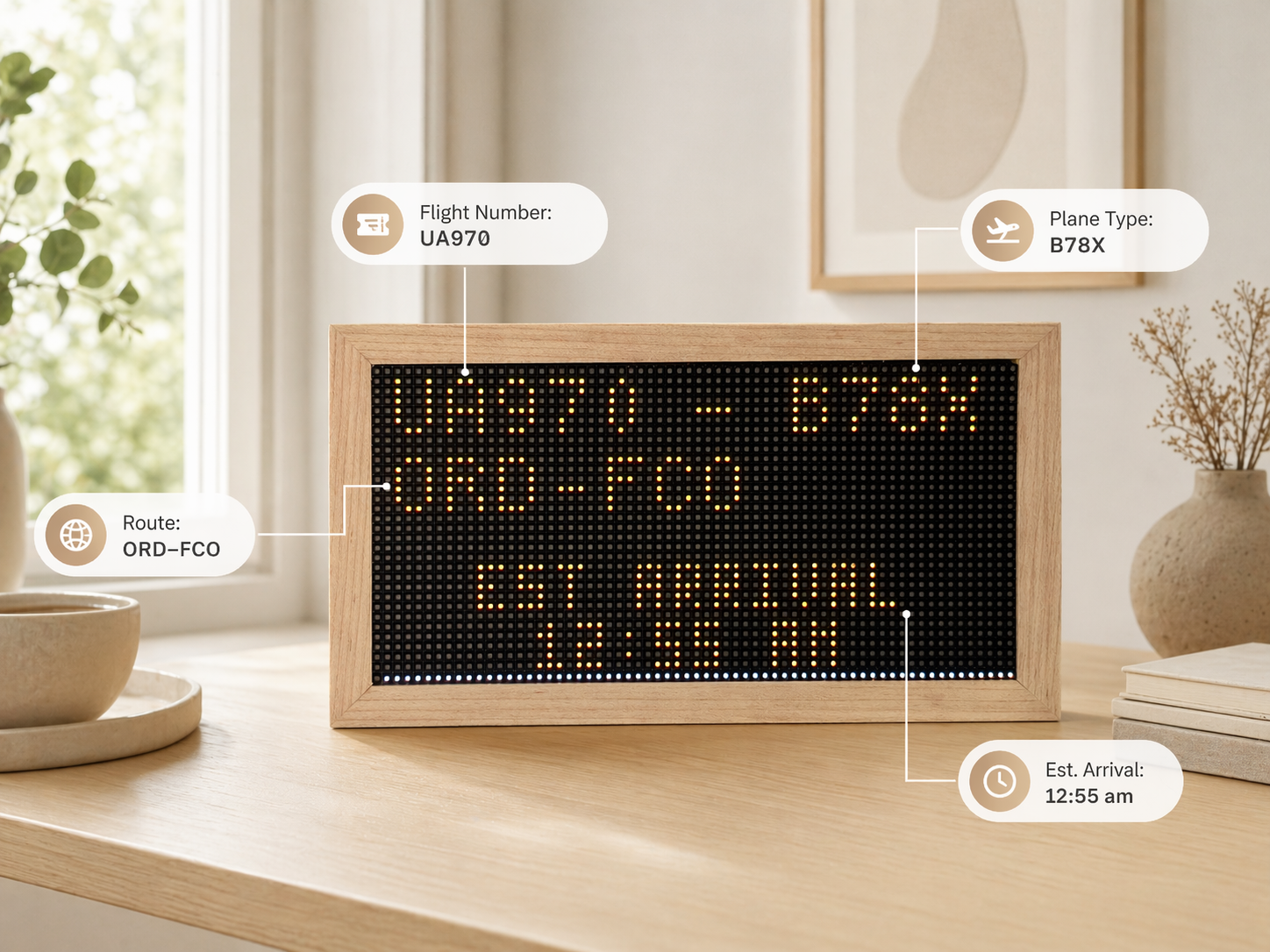
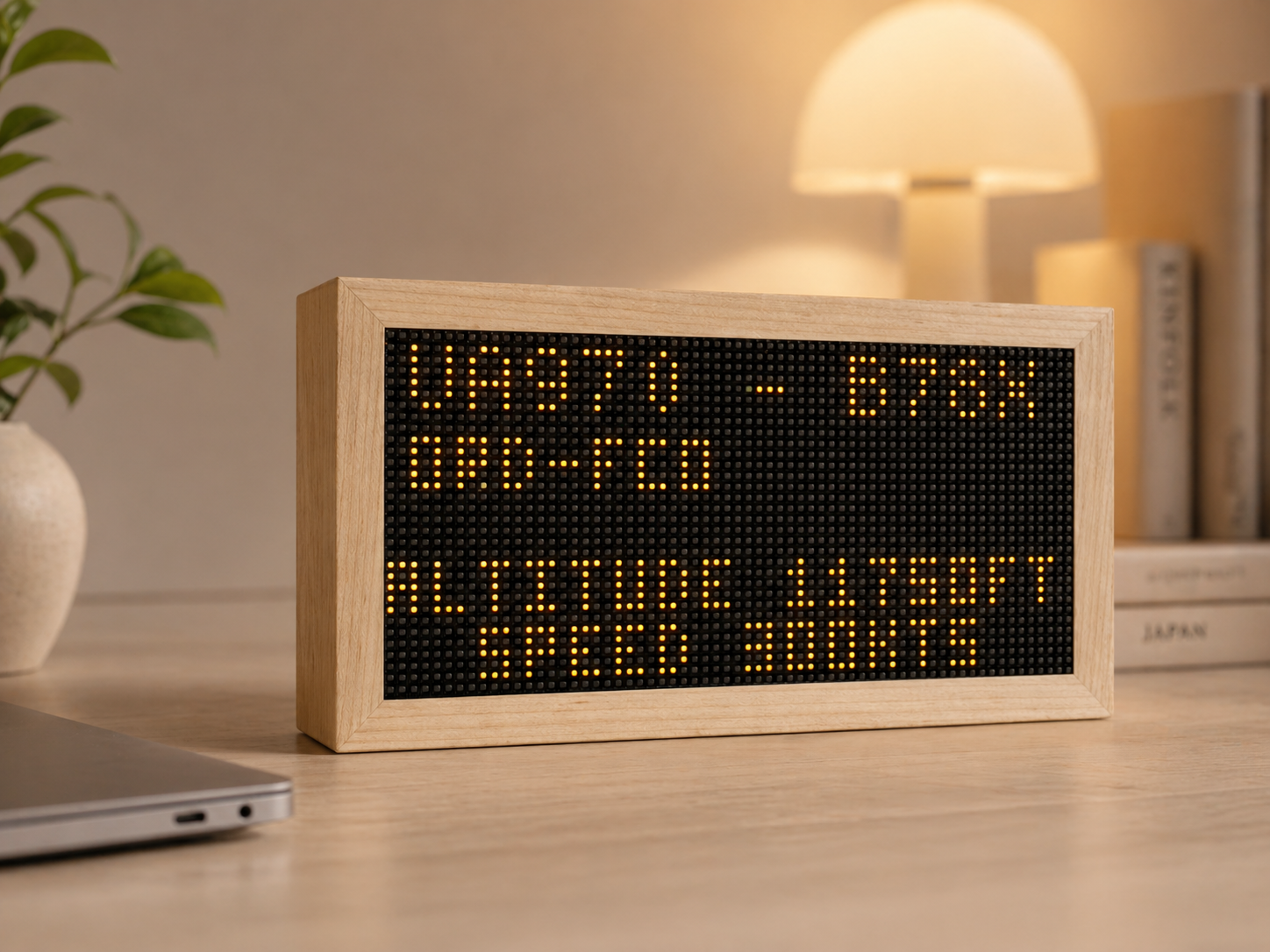
Mach 2 live flight tracking display showing UA970 route and aircraft data
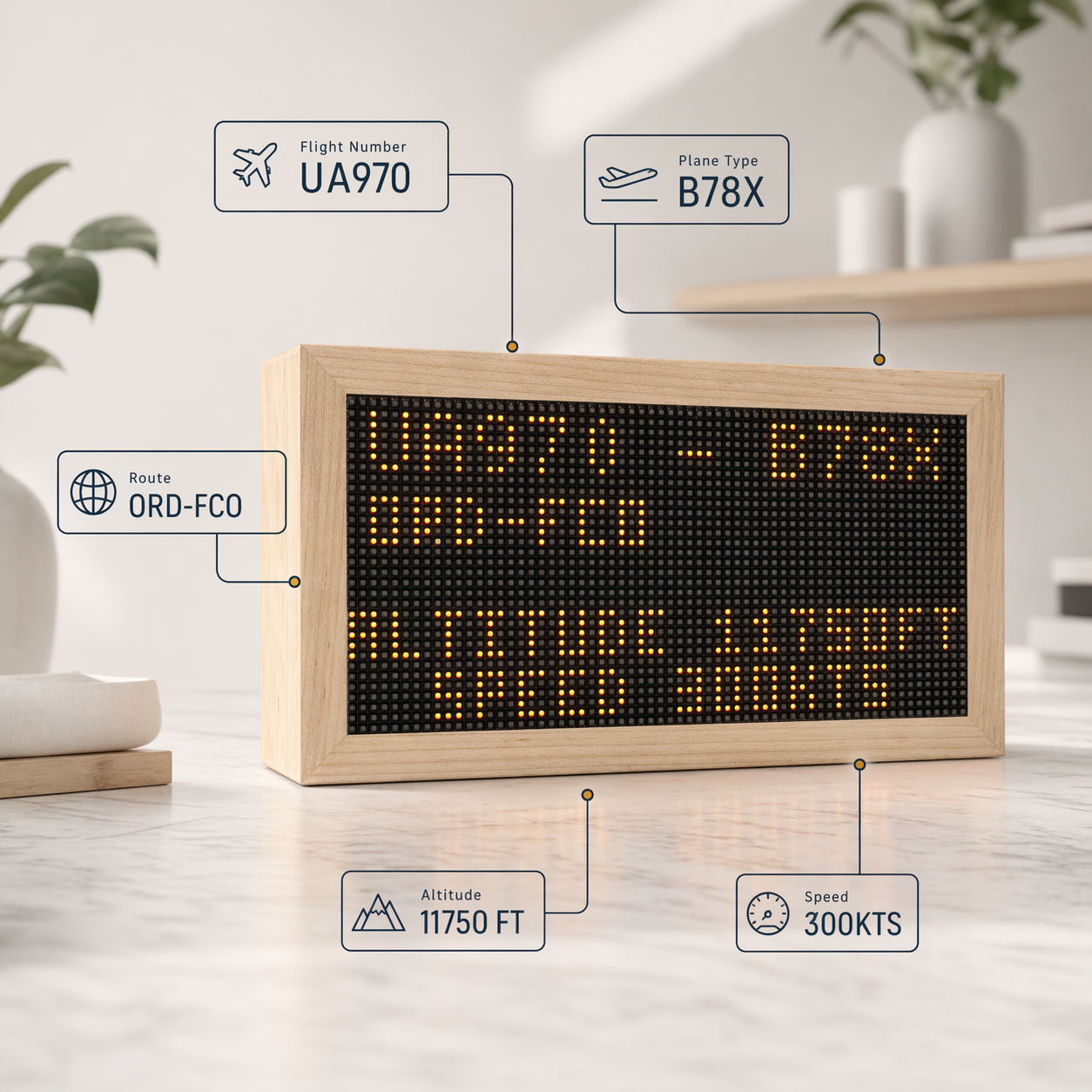
Mach 2 altitude and speed callouts for an individual flight tracker display
$149
Free worldwide shipping
Live Overhead Tracking
See nearby aircraft as they enter your configured tracking area.
Track Any Flight
Enter a flight number and follow route, altitude, speed, and status.
Browser Setup, No App
Connect over USB, join Wi-Fi, then configure from any browser.
Modes That Keep Growing
Scenes, filters, brightness control, and free OTA improvements.
The Hardware

Mach 2.

Built on ESP32-S3 with a full-color 2,048-pixel LED matrix. Pulls live ADS-B data for overhead tracking, follows specific flight numbers, and supports multiple display modes, scenes, brightness settings, and filters — no app required.

Display2,048-pixel LED matrix
ProcessorESP32-S3
Data SourceLive ADS-B
PowerUSB-C / 5V
ModesOverhead, specific flight, scenes
ControlsBrightness, filters, tracking area
UpdatesFree OTA, over Wi-Fi
SetupBrowser-based, no app
FrameSolid maple
$149
USD · Free worldwide shipping
From Unboxing to Tracking

Up and running in under 5 minutes.

01
Plug In & Connect
Power via USB-C. Open the browser-based setup page — no app download. Connect to Wi-Fi in seconds.
02
Define Your Sky
Search an address, use a preset radius, or draw a custom tracking area. The display scans automatically.
03
Choose a Mode
Watch overhead traffic, lock onto a specific flight, or switch into scenes and other display apps.
04
Tune the Display
Adjust brightness, distance, altitude, aircraft filters, and display preferences from the dashboard.
New Feature

Departure
Board Mode.

Turn your tracker into a personal airport FIDS — showing live departures from any airport, right on your desk. Specific flight tracking and Departure Board mode use a low-cost FlightAware AeroAPI key that you add in the dashboard. If you do not want to create one, reach out and I will help make it work.
✈  Available on Mach 2
FlightTrackerLED departure board scene showing live airport departures on a maple LED display
Early Owners

What people are saying.

★★★★★

"I live under the SFO approach. Within 5 minutes I was reading every single plane. The LED display is incredibly crisp."

M. Chen · San Francisco, CA
★★★★★

"The wooden frame looks amazing on my desk. My kids love pointing out the planes. Setup was genuinely under 5 minutes."

J. Holloway · Chicago, IL
★★★★★

"Bought it as a gift for my dad who's a retired pilot. He was speechless. The detail — aircraft type, altitude, speed — is remarkable."
A. Torres · Denver, CO
Documentation

Setup Guide

Get your Mach 2 connected and tracking flights in a few minutes. All you need is the included USB-C cable and a computer running Chrome or Edge.

01

Step 1 — Connect via USB

Flight Tracker Mach 2 uses USB Web Serial for setup — no app downloads, accounts, or Bluetooth pairing needed. When the display first powers on, it cycles through setup instructions on the LED matrix.

  1. Plug in your Flight Tracker to your computer using the included USB-C cable.
  2. Open Chrome or Edge on your computer and go to setup.flighttrackerled.com.
  3. Click "Connect Device" — your browser prompts you to select a USB serial device. Choose your Flight Tracker.
⚠ Web Serial requires a desktop browser — Chrome or Edge on macOS, Windows, or Linux. It does not work on phones or tablets. If the device does not appear, try a different USB-C cable or port.
02

Step 2 — Connect to Wi-Fi

  1. Click "Scan Networks" to see nearby Wi-Fi networks.
  2. Select your home network from the list, or type the SSID manually.
  3. Enter your Wi-Fi password and click "Save and Connect."

The display will restart and connect. Once online, the LED matrix confirms the connection. You can unplug the USB cable from your computer — the tracker runs on its own from any standard 5V USB-C power source.

✓ Wrong password? The display returns to setup mode. Reconnect via USB and try again.
03

Step 3 — Set Your Location

Open the built-in settings dashboard at the tracker's IP address, shown on the LED matrix at startup. You can use any device on the same Wi-Fi network for this step, including a phone or tablet.

Option A — Search by Address

  1. Type your address, city, or ZIP code into the location field.
  2. Click Search — the dashboard sets your coordinates and creates a 20-mile tracking area.
  3. Click Save.

Option B — Custom Area

  1. Go to bboxfinder.com and draw a rectangle around your area.
  2. Copy the URL and paste it into the Custom Boundary field on the dashboard.
  3. Or use the dashboard presets for a quick 20-mile or 40-mile tracking radius.
04

Step 4 — Add FlightAware for Advanced Modes

Specific flight tracking and Departure Board mode need a FlightAware AeroAPI key. It is usually inexpensive for normal personal use, and it lets Mach 2 request live flight status and airport board data. Keep it private, just like a password.

  1. Go to flightaware.com/aeroapi/signup/personal.
  2. Create or sign in to your FlightAware account.
  3. Choose the Personal AeroAPI tier if you are using the display for personal or academic use.
  4. Review FlightAware's current pricing and included monthly credit before enabling it.
  5. Copy your AeroAPI key from the FlightAware portal and paste it into the Mach 2 dashboard.
✓ Overhead tracking does not need this key. It is for specific flight and airport-board features that use FlightAware data. If you cannot or do not want to create a key, email or text me and I will help you get it working.
05

Step 5 — Choose a Tracking Mode

Specific Flight Tracking

  1. Open the display mode selector and choose Specific Flight or Track Flight.
  2. Enter an airline code plus flight number, such as UA970, AA100, or DAL123.
  3. Click Save or Apply. The display looks up the flight and shows live route, timing, position, altitude, and speed when available.

Departure Board

  1. Choose Departure Board from the dashboard.
  2. Enter the airport code you want to watch, such as ORD, LAX, or JFK.
  3. Set departures, result count, and refresh frequency if those controls are available.
✓ A 10-15 minute departure-board refresh is a good starting point. Slower refreshes reduce FlightAware API usage.
06

Step 6 — Customize Your Display

  • Adjust brightness — Dial it to match your room.
  • Switch display modes — Move between overhead tracking, specific flight tracking, Departure Board, clock, scenes, and other apps.
  • Set flight filters — Filter by altitude, distance, or aircraft type.
  • Update choices anytime — Change tracked flight numbers, airports, tracking areas, and preferences from the dashboard.

Your Mach 2 receives free OTA updates automatically — new features ship straight to your display over Wi-Fi.

!

Troubleshooting

  • Device not showing up? Use Chrome or Edge on desktop. Try a different cable or USB port.
  • "Firmware did not answer"? Unplug, wait a few seconds, replug, click Connect again.
  • No flights showing? Try the 40-mile preset or draw a larger area on bboxfinder.com.
  • Specific flight not found? Confirm the flight is active today and use the airline code plus flight number exactly as shown on FlightAware.
  • Departure Board is blank? Check the airport code, AeroAPI key, result count, and refresh interval.
  • Worried about API usage? Increase the refresh interval, reduce displayed flights, and check FlightAware's My AeroAPI usage page.
  • Can't access dashboard? Make sure your device is on the same Wi-Fi as the tracker.
  • Need to start over? Use Clear WiFi on the setup page to reset network settings.
  • Still stuck? Contact us — we respond quickly.
Scene Guide

Overhead Scanner

The main Mach 2 scene. Set your home location, define the sky you care about, and watch nearby aircraft appear as live snapshots arrive.

Main App

A live window into the traffic above you.

Overhead Scanner uses your saved tracking area, altitude filters, and display preferences to show nearby flights on the LED matrix. The box publishes your settings, the cloud builds a fresh flight snapshot, and Mach 2 renders the current aircraft list locally.

Mach 2 Overhead Scanner scene showing live aircraft overhead
How it works

Boundary in, snapshot out.

Your dashboard stores a home point, a tracking boundary, airport code, brightness, and filters. When settings are saved, the box republishes them and waits for the next cloud snapshot.

How to use it

Start with your address.

Use the location search for a simple 20-mile area, pick the 40-mile preset for more traffic, or paste a bboxfinder.com boundary if you want precise control.

What you can tune

Make the display match your sky.

Adjust brightness, altitude range, distance, aircraft detail fields, and other display preferences from the local settings dashboard.

Workflow

Using Overhead Scanner

  1. Open the dashboard. Use the IP address shown on the matrix after the box joins Wi-Fi.
  2. Set your location. Search your address or paste a custom boundary from bboxfinder.com.
  3. Choose filters. Narrow by altitude, distance, and the details you want shown.
  4. Save settings. The box republishes your settings and the display updates when the next snapshot arrives.
Dashboard Settings
Cloud Flight Snapshot
Mach 2 Matrix
Troubleshooting

If flights do not show right away

Give it a moment after saving. The box has to publish settings, receive a fresh snapshot, and apply it to the display.

Expand the area. If traffic is light, try the 40-mile preset or a larger custom boundary.

Check filters. A narrow altitude range or distance limit can hide flights that are otherwise available.

Check Wi-Fi and sync. If the dashboard says the box is waiting for a snapshot, leave it connected and refresh status after a few seconds.

Scene Guide

Individual Flight Tracker

Lock Mach 2 onto one flight number and follow its route, timing, status, aircraft, altitude, and speed as live data becomes available.

Flight Tracker App

For the flight you actually care about.

Enter a flight number like UA970, UAL970, AA100, or DAL123. Mach 2 saves the request, switches to the tracker scene, and updates as the cloud resolves the live flight and publishes status back to the box.

Mach 2 Individual Flight Tracker scene showing a specific tracked flight
How it works

One callsign, richer context.

The tracker stores your requested flight number, uses the shared FlightAware cloud key when needed, and then follows the active flight as live data comes in.

How to use it

Type the flight, press Track.

Open the dashboard, go to Track Flight, enter the airline code plus number, and press Track. The scene may show searching while the first live snapshot loads.

What it shows

Status at a glance.

Depending on the data available, the display can show callsign, route, aircraft type, flight status, estimated time remaining, altitude, and speed.

Workflow

Tracking a specific flight

  1. Add the FlightAware key. Specific flight tracking uses the shared FlightAware cloud key stored securely for your box.
  2. Enter the flight number. Use the airline code plus number, with no spaces unless the dashboard asks for separate fields.
  3. Press Track. The dashboard saves the request and switches the box to the tracker scene.
  4. Wait for the first result. Scheduled and predeparture flights can take a little longer to resolve than flights already in the air.
Flight Number
FlightAware Lookup
Live Tracker Scene
Troubleshooting

If a tracked flight looks stuck

Give the scene time after switching. The box changes scenes first, then waits for the cloud to resolve and publish the live flight snapshot.

Check the identifier. Try the flight number exactly as shown on FlightAware, including the airline code.

Confirm the flight is active today. Future, canceled, or completed flights may not have live position data yet.

Check the cloud key. If the dashboard shows no FlightAware key, use Secure Submit or contact me and I will help get it working.

Scene Guide

Departure Board

Turn Mach 2 into a small airport board for one airport and airline, with live departure status delivered through the shared FlightAware cloud key.

Departure Board App

A tiny FIDS for your desk.

Choose an airport, choose an airline, pick a refresh interval, and start the scene. Mach 2 requests the latest departure board data and lays it out on the LED matrix like a miniature terminal display.

Mach 2 Departure Board scene showing live airport departures
How it works

Airport plus airline.

The dashboard asks for a 3-letter airport IATA code, like ORD, and a 3-letter airline ICAO code, like UAL. The board shows matching departures by time.

How to use it

Save, then start.

Enter the airport, airline, and refresh interval, press Save Settings, then start Departure Board. The first live result can take a moment to appear.

Refresh control

Balance live data and usage.

Start around 10-15 minutes for a normal desk display. Shorter intervals feel fresher; longer intervals reduce FlightAware API usage.

Workflow

Starting Departure Board

  1. Add the FlightAware key. Departure Board uses the shared key stored securely for your device.
  2. Enter airport and airline. Use IATA for the airport, like ORD, and ICAO for the airline, like UAL.
  3. Choose refresh interval. Two minutes is available, but 10 minutes is a better everyday starting point.
  4. Save settings and start. After switching scenes, give the box a little time to fetch and render the first live board.
Airport + Airline
FlightAware Departures
Board Scene
Troubleshooting

If the board is blank at first

Wait after switching scenes. Departure Board may take a second before the box updates and the first live results appear.

Save settings first. Airport, airline, and refresh interval still need Save Settings before the scene has the latest values.

Check code types. Use airport IATA codes like ORD/LAX/JFK and airline ICAO codes like UAL/AAL/DAL.

Check the FlightAware key. If you do not want to create one or hit a snag, email or text me and I will help make it work.

The Story

Built by a Plane Spotter

FlightTrackerLED started as a personal project. It turned into something others wanted on their desks too.

FlightTrackerLED Mach 2 handmade maple LED flight display on a wooden desk
Origin

A display for obsessives.

I live under a busy flight path, and I have always looked up when a plane passes over — wondering where it is going, what airline it is, and what aircraft is making that sound. I wanted something on my desk that answered those questions the moment a flight appeared overhead.

Hardware, software, and carpentry have all been long-running passions of mine, and Mach 2 sits right at that intersection. The first prototype ran on a Raspberry Pi. It worked, but it was slow to boot, unreliable, and fussy to set up. I rebuilt it from scratch on ESP32-S3 for faster startup, lower power, and no SD card to corrupt, then built a maple enclosure because the object deserved to feel as good as the data.

There is no team, no office, and no factory line. It is just me. I hand make every single box, program each display, test it, pack it, and ship it myself. The best part is that I can keep building new scenes and features after it leaves my shop, then send them straight to your Mach 2 with OTA updates.

If the FlightAware key for specific flight tracking or Departure Board ever feels like a barrier, please email or text me. I care more about people getting to enjoy this than about making setup feel complicated, and I will help find a way to make it work.

01
No Device Subscription
One display. Free firmware updates and support.
02
Built by One Person
Every box is made, programmed, and tested by hand.
03
Always Improving
New scenes and features ship over Wi-Fi.
04
Real Support
You're emailing a real person. I answer every message.
Knowledge Base

Frequently Asked Questions

Can't find your answer? Contact us and we'll help.

Product

Flight Tracker Mach 2 is a handmade ESP32-S3 LED matrix display that tracks flights in real time. It shows planes flying overhead, lets you follow specific flight numbers, supports multiple display modes and scenes, and receives free over-the-air updates so it keeps improving after it arrives.

  • 64×32 LED matrix in a solid maple frame
  • ESP32-S3 controller board (pre-installed)
  • USB-C cable for setup and power
  • Quick start card with setup instructions

Plug the included USB-C cable into any standard 5V USB-C power source — no separate computer connection is needed after Wi-Fi setup.

There is no FlightTrackerLED device subscription, monthly fee, or hidden device cost. OTA updates and support are included. Some optional advanced modes, such as specific flight tracking and Departure Board, use a FlightAware AeroAPI key that you manage through FlightAware.

  • ESP32-S3 instead of Raspberry Pi — faster boot, lower power, more reliable
  • Guided USB setup — no terminal commands or config files
  • OTA updates — new features ship automatically
  • Built-in settings dashboard — configure from any browser on your network
  • Handmade and tested — every unit quality-checked before shipping

Every Mach 2 is individually assembled, programmed, tested, and quality-checked by hand before shipping. These are not mass-produced units; each display is built with care around the maple frame, LED matrix, and pre-installed controller.

Setup & Configuration
  1. Plug into your computer with the USB-C cable.
  2. Open Chrome or Edge, go to setup.flighttrackerled.com.
  3. Click Connect Device and follow the steps to join Wi-Fi.
  4. Open the tracker's IP address in any browser to set location and customize.

Chrome and Edge on desktop support Web Serial. Safari, Firefox, and mobile browsers do not. After initial setup, any browser works for the settings dashboard.

The initial Wi-Fi setup requires a desktop or laptop running Chrome or Edge because mobile browsers do not support Web Serial. After the tracker is on Wi-Fi, you can open the settings dashboard from any device on your network, including a phone or tablet.

Search by address for an automatic 20-mile area, or go to bboxfinder.com to draw a custom boundary and paste the URL into the dashboard.

The tracker automatically re-enters setup mode when it can't connect. Plug it in via USB and re-enter your credentials at setup.flighttrackerled.com.

Tracking & Features

Yes. Enter any active flight number (e.g. UA123, BA456) in the settings dashboard. Your display follows that flight in real time — altitude, speed, route — until it lands.

Your tracker monitors live ADS-B flight data inside your configured tracking area. It shows nearby aircraft with details like airline, flight number, aircraft type, altitude, speed, and route as planes enter and leave your area.

Mach 2 supports multiple apps, scenes, and display modes from the settings dashboard, including overhead traffic, specific flight tracking, ambient scenes, and airport-style board features. New modes can arrive through free OTA updates.

The tracker checks for updates automatically over Wi-Fi. New features, modes, and fixes download and install in the background — no action required, always free.

Yes to both. Brightness is adjustable from the dashboard. You can also filter by altitude, distance, and aircraft type to see exactly what you want.

Yes. Departure Board and specific flight tracking use a FlightAware AeroAPI key that you add in the dashboard. For normal personal use it is usually a cheap key, and you can start with a 10-15 minute refresh interval to limit API usage. If you cannot afford one or simply do not want to create one, email or text me and I will help make it work for you.

Orders & Support

Worldwide. Each unit is handmade to order — please allow a few business days for assembly and testing. International orders may be subject to customs duties.

We want you to be completely happy. If something isn't right, contact us and we'll make it right.

USB-C, 5V. Any standard USB-C charger works — phone charger, computer, or USB wall adapter. Once Wi-Fi is configured, it runs on its own with no computer attached.

Every Mach 2 includes direct lifetime support from me. There is no outsourced support queue. If you run into setup, configuration, FlightAware, or tracking issues, contact me. I am available day and night and will help you get sorted.

Still have questions?

Shop

The Mach 2

A finished handmade flight tracker display for live overhead tracking, specific flight tracking, scenes, filters, and free OTA improvements.

FlightTrackerLED Mach 2 product photo with maple frame and live ORD to ANC flight data
FlightTrackerLED
Mach 2
ESP32-S3 LED Flight Display · Solid Maple

Live ADS-B flight tracking on a 2,048-pixel full-color LED matrix. Watch overhead aircraft, follow specific flight numbers, switch display modes, adjust brightness, and filter what appears. Set up in minutes, configure from any browser, and get free OTA updates for life.

What's Included
  • 64×32 LED matrix in solid maple frame
  • ESP32-S3 controller board (pre-installed)
  • USB-C cable for setup and power
  • Quick start card
  • Overhead tracking, specific flight mode, scenes, and filters
  • Free lifetime OTA updates
  • Free lifetime support
$149
USD · Free worldwide shipping · Handmade to order
ESP32-S3
Purpose-built controller, fast boot, no SD card to corrupt.
Maple
Handmade wood enclosure, not a 3D-printed LED matrix shell.
Statement
Built to sit out on a desk, shelf, or console and start conversations.
OTA
New scenes, fixes, and features can ship straight over Wi-Fi.
Developer Hardware

MatrixPortal Dev Kit

The same handcrafted wood display hardware as a blank canvas for your own code. No pre-loaded apps. No refunds. Built for developers and makers.

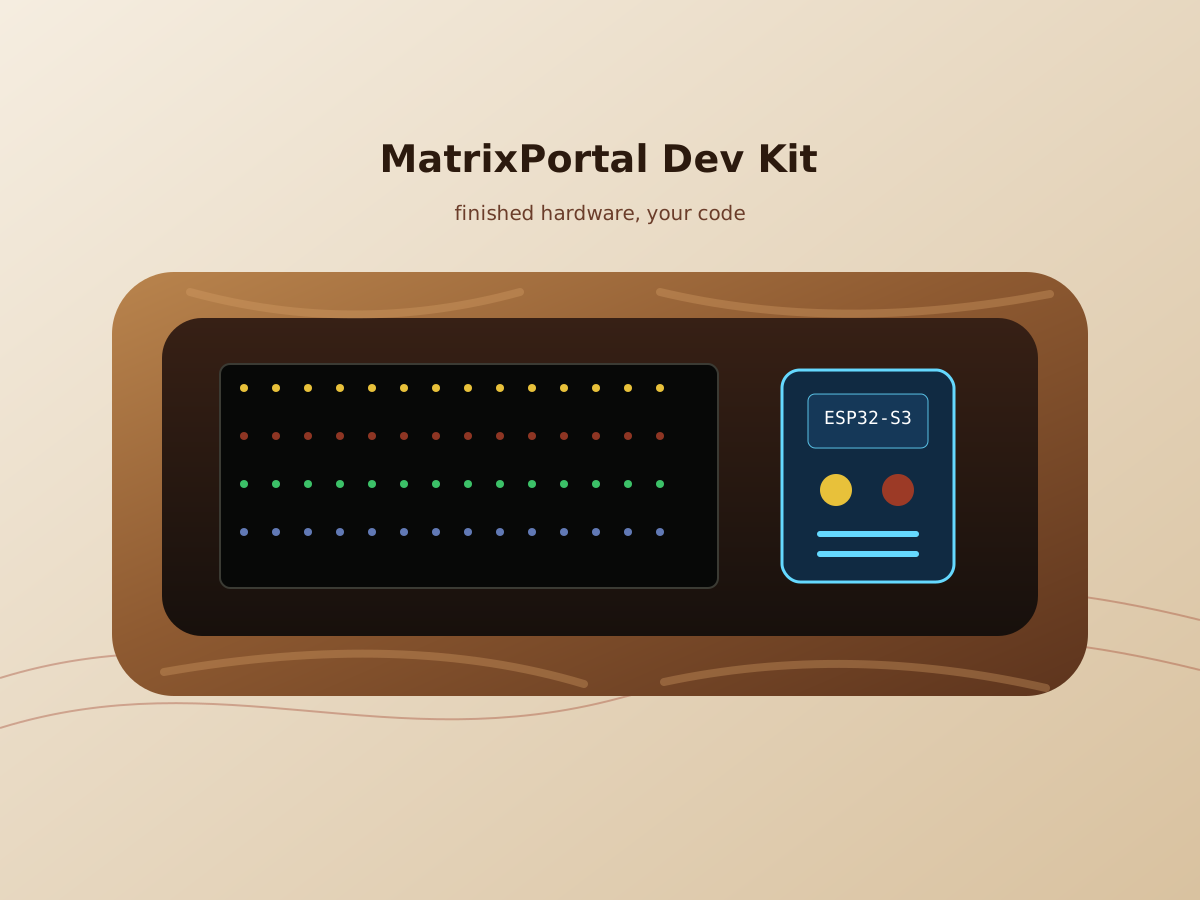
Illustration of MatrixPortal Dev Kit ESP32-S3 LED display in handcrafted wood enclosure
Developer Hardware
MatrixPortal Dev Kit
ESP32-S3 LED Display · Handcrafted Wood Enclosure

Your canvas, your code. This is finished hardware — screen, frame, controller, and power — ready for you to build whatever you want. Flash your own firmware, build your own apps, or use the included development infrastructure to get started faster.

What You Get
  • Adafruit MatrixPortal ESP32-S3 controller board
  • 64×32 RGB HUB75 LED matrix installed in enclosure
  • Handcrafted wood frame, assembled and finished
  • 5V 5A power supply and USB-C cable
  • MQTT broker access for real-time data push and remote control
  • Admin panel, device provisioning flow, backend API access, and hosted OTA update pipeline
  • Compatible with Arduino, CircuitPython, and ESP-IDF workflows
Developer product. No refunds. Ships with no apps or pre-loaded software. You are responsible for firmware, code, configuration, and integration. This product requires technical experience. All Dev Kit sales are final.
$499
Checking Shopify availability...
Want one from the next batch?

Dev Kits are sold out right now. Email me with what you want to build and I will follow up when I can make more.

Request Dev Kit
Blank Canvas
No pre-loaded apps. You flash the firmware and decide what the display becomes.
Finished Wood
A real handcrafted enclosure, not a bare panel or loose development board.
Cloud Tools
MQTT, provisioning, admin tooling, backend API access, and hosted OTA pipeline.
Final Sale
Developer-only product. Technical setup is your responsibility. No refunds or returns.
Get In Touch

We're Here

Questions about setup, your order, or anything else — we'll get back to you fast.

Contact

Say Hello.

Every Mach 2 comes with direct lifetime support from me. If you need help with setup, FlightAware, a specific flight, Departure Board, or anything else, email or text me. I am available day and night and will always help, which is not something every flight box on the market can say.

Response Time
Usually within a few hours
Quick Links
Setup Guide · FAQ
✓ Message sent — we'll be in touch soon!